WPS Office-PDF, Word, Sheet
- 4.4
- Rating
- 500.00M
- Installs
- Free
- Price

 Analysis by App-foxy
I started using WPS Office because I wanted one mobile workspace for documents, spreadsheets, presentations, and PDFs instead of switching between several apps. That sounds simple, but the real test is not opening a file. It is whether the app helps when a document arrives by email, a PDF needs signing or conversion, a spreadsheet must be checked on a small screen, or a file refuses to behave as expected. After spending time with it in those situations, I found a capable productivity app with a broad toolset and a few points of friction that are easy to overlook.
WPS Office-PDF, Word, Sheet is a free productivity app from WPS SOFTWARE PTE. LTD. It is suitable for Everyone and supports Android devices running version 7.0 or later. The app has been available since July 21, 2011, and its current version is 18.24. Its popularity is substantial: it has passed over 500 million installs, with a 4.5 average from around 5.9 million ratings and about 61 thousand written reviews.
Getting past the first points of friction
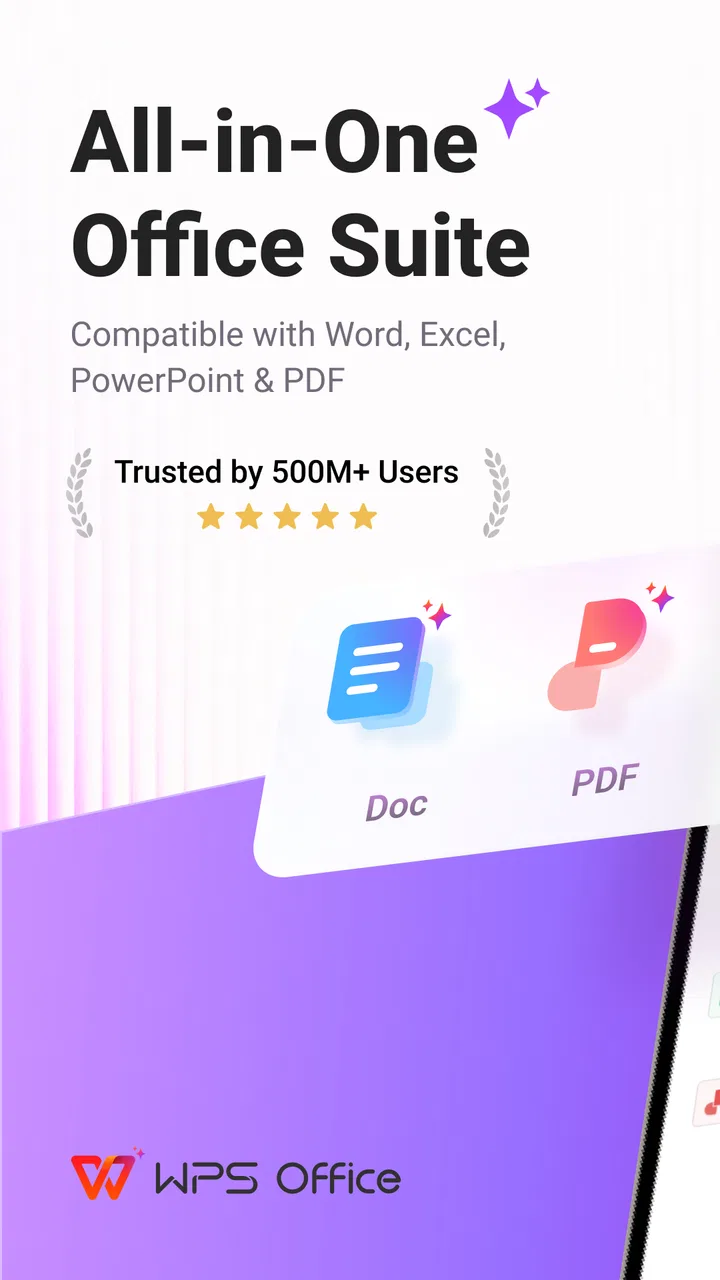
The first thing I noticed is that this is not a tiny viewer with a few editing buttons. It brings together word processing, spreadsheets, presentations, PDF work, scanning, file conversion, and AI-assisted writing. That range is useful, but it also means the opening experience can feel busier than a dedicated document reader. If you only need to read an occasional PDF, the number of available tools may seem unnecessary.
You May Also Like

 Blood Strike: 2.5 Anniversary
Blood Strike’s Loadouts Turn Every Drop Into a Tactical Gamble
A close look at Blood Strike’s custom loadouts: how fast access to signature weapons reshapes its battle royale rhythm, rewards preparation, and narrows the gap between fights.

 Pandora - Music & Podcasts
Pandora’s Music Is Easy to Start, but Harder to Recover
Pandora’s strength is its low-effort path from a seed to a station. Its weak spot is how much confidence it asks you to place in connection, setup, and quiet recovery.

 8 Ball Pool
 Is Built on Rivalries, Rematches, and Routine
A close look at the rivalries, rematches, shared routines, and unanswered safety questions that turn a quick pool match into a persistent mobile community.

 Samsung Music
’s Quiet Strength Is Playing What You Already Own
Its reach comes less from spectacle than from dependable access to a personal library. That simplicity is both the app’s strongest retention engine and its ceiling.

 AccuWeather: Weather Radar
AccuWeather Review: A Quick, Clear Forecast for Everyday Decisions
For everyday plans, the best forecast is the one you can understand quickly. AccuWeather makes rain timing, radar, and local conditions easy to act on, with a few trade-offs.

 Hill Climb Racing
Why Hill Climb Racing Still Turns Crashes Into One More Run
A tiny car, a bumpy hill and one more upgrade: Hill Climb Racing keeps resurfacing because its simple chaos makes every near-miss feel personal.
More From Our News Desk
View All News


My advice is to begin with one ordinary file rather than exploring every feature at once. Open a document you already know, check how the layout appears, and try a small edit before relying on the app for an important submission. This quickly reveals whether fonts, tables, page breaks, or spreadsheet formulas display as expected on your device.
File location is another common stumbling block. A document may be stored in the Downloads folder, attached to an email, shared through a messaging app, or saved inside another cloud service. When it seems to have disappeared, I first check the original source and then use the device’s file picker to open it with WPS Office. Searching only inside the app can be misleading if the file has not yet been copied or made available to it.
PDFs create a different kind of confusion. A PDF that looks editable may actually be a scanned image, while a text-based PDF can still have unusual fonts or a complicated layout. Editing, converting, or extracting content from these files is therefore not always equally smooth. I treat the first conversion as a draft and inspect the result before sending it anywhere important.
The app’s free entry point is helpful for casual users, students, and people who need to handle a file while away from a computer. However, some functions are connected to in-app purchases, which range from a few cents to nearly two hundred forty dollars per item. I would not assume that every advanced action is included simply because the app itself is free. Before beginning a time-sensitive task, I check whether the selected tool asks for an upgrade.
What I check before trusting a file
My basic setup routine is deliberately boring. I make sure the app is updated, confirm that the phone has enough free storage for temporary working files, and open the original document before creating a replacement copy. This matters especially with large PDFs and spreadsheets, where a failed save can leave you unsure which version is current.
I also keep the original file untouched until the edited copy has been checked. For a contract or application form, I save a separate working version, make the changes, close it, and reopen it. That extra step catches incomplete saves and gives me something to return to if a conversion changes the layout.
On a small phone screen, editing is more comfortable when I rotate the device for wide tables or presentation pages. I avoid making detailed spreadsheet changes while walking or rushing between appointments. WPS Office can make mobile work possible, but it cannot make a narrow screen as practical as a full keyboard and monitor.
For scanning, I place the paper on a flat, contrasting surface and take a moment to align the camera. A rushed scan can produce skewed pages or shadows that make later text recognition and conversion less useful. The app’s scanning tools are most valuable when I treat the capture stage as carefully as the editing stage.
Another useful check is to identify the job before choosing the tool. If I need to change a paragraph, I open the word-processing editor. If I need to inspect figures, I use the spreadsheet section. If I only need to annotate or rearrange a PDF, I avoid converting it unnecessarily. Conversion can be convenient, but it adds another opportunity for formatting to shift.
Recovering a workflow when something goes wrong
When an edit appears to vanish, I do not immediately repeat the whole task. I first reopen the file and check whether the change was saved under a different name or in another folder. I then compare the file’s location with the place from which it was originally opened. This simple check solves more problems than repeatedly pressing the save button.
If a document opens with broken spacing, missing symbols, or altered page breaks, I return to the original format and make the smallest possible change. For example, I would edit a Word document as a Word document rather than converting it to PDF and back again. Every conversion can introduce differences, particularly in files with tables, unusual typography, or forms.
For a PDF that refuses to edit cleanly, I decide whether editing is actually necessary. If the goal is to add a note, mark a page, or complete a simple field, keeping the PDF intact is usually safer than turning it into a document. If the file is a scan, I expect recognition to need proofreading rather than treating the extracted text as automatically accurate.
Spreadsheet recovery needs a little more caution. On a phone, it is easy to select the wrong cell, drag a handle accidentally, or overlook a change lower down the sheet. I make one adjustment at a time, review nearby cells, and save a separate copy before making a larger batch of edits. This is slower than working on a computer, but it reduces the chance of silently changing a calculation.
When the app feels slow, I close other demanding apps, reopen the file, and try a smaller document. Large PDFs, image-heavy files, and complex spreadsheets naturally place more pressure on a mobile device than a short text document. If only one file causes trouble, I suspect the file’s structure before blaming the entire application.
AI-assisted writing can be useful for getting past a blank page or reshaping rough notes, but I use it as a drafting aid rather than a final editor. I read every suggestion, especially when the text involves names, figures, instructions, or a personal tone. The convenience is real, but the responsibility for accuracy remains with me.
A realistic day with the app
A practical example is a student receiving a reading assignment as a PDF, taking a photo of handwritten notes, and preparing a short report on a phone. I would scan the notes, check the recognition manually, draft the report in the word processor, and keep the source PDF open for reference. Once finished, I would export or share the final version only after checking headings, page breaks, and any inserted images.
For a small business owner, the workflow might be different. They may receive an invoice as a PDF, update a spreadsheet of expenses, and send a revised document before reaching a computer. WPS Office is valuable here because the same app can handle several file types in sequence. The trade-off is that detailed bookkeeping, extensive formatting, or repeated data entry is still more efficient with a desktop keyboard.
I also found it useful as a travel backup. If a document arrives unexpectedly, I can read it, make a quick correction, scan a paper, or convert a file without carrying a laptop. I would not choose a phone as my main office for a long report, but I appreciate having a broad emergency toolkit available.
Where another option may be better
The main alternative is using separate, specialized apps. A dedicated word processor may feel cleaner for long documents, a spreadsheet-focused tool may be better for complicated models, and a PDF specialist may offer a more focused annotation experience. WPS Office wins when convenience and file variety matter more than having the deepest interface for one format.
It is also worth separating compatibility from collaboration needs. If a team already works inside a particular office ecosystem, staying with that ecosystem may reduce sharing and formatting surprises. WPS Office is a strong general-purpose choice for opening and handling many common files, but it is not automatically the best answer for every organization’s established workflow.
People who dislike crowded interfaces or who only read PDFs may prefer a simpler reader. Likewise, anyone doing serious spreadsheet analysis or page-perfect publishing should test their exact files before moving away from a desktop application. The mobile app is most convincing as a flexible companion and all-rounder, not as a universal replacement for every professional tool.
What the large user base tells me—and what it does not
The app’s scale suggests that it has become a familiar option for people who need office-style tools on mobile. Its 4.5 average and more than 500 million installs make it easy to understand why a new user might try it first. Still, popularity does not remove the need to test your own documents. A simple letter and a heavily formatted business form can behave very differently.
I particularly value the combination of PDF handling, scanning, conversion, and traditional office editing. Those features make sense together in real life because documents rarely arrive in one neat format. A paper receipt becomes a scan, a PDF becomes a reference, a spreadsheet records the numbers, and a word-processing file becomes the final report.
The weakness is the same breadth that makes the app attractive. Menus can take time to learn, advanced actions may involve in-app purchases, and mobile editing remains constrained by screen size and touch controls. I would also avoid assuming that a converted file is perfect without checking it visually. These are manageable limitations, but they deserve attention before an important deadline.
For a smoother experience, I use a simple rule: keep the original, make one controlled change, then verify the saved result. That habit is more valuable than searching for a single button that will solve every document problem. It protects against misplaced files, conversion surprises, and accidental edits across all the formats the app supports.
WPS Office-PDF, Word, Sheet is a good fit for students, travelers, freelancers, and families who want one free starting point for everyday documents. It is also useful for anyone who regularly moves between scans, PDFs, text files, and spreadsheets. The Everyone rating makes it approachable for a broad audience, while support for Android 7.0 and later covers many older devices.
I would skip it if I only wanted the lightest possible PDF reader, if I needed a highly specialized spreadsheet environment, or if my work depended on perfect desktop-level formatting every time. In those cases, a focused alternative may be less distracting and more predictable.
For me, the practical verdict is favorable. The app earns its place on a phone because it handles the awkward middle ground between “I need to read this” and “I need to finish this now.” I recommend installing it for that flexibility, but I would pair the recommendation with one warning: test important files early, keep backups, and treat conversion and AI-assisted writing as tools that still need human review.
FAQs for WPS Office-PDF, Word, Sheet
01What features does WPS Office offer compared to other office suites?
WPS Office provides a comprehensive suite of tools, including Writer, Spreadsheet, and Presentation. It supports a wide range of file formats, making it compatible with Microsoft Office files. Additionally, it offers PDF conversion and editing, cloud storage integration, and a user-friendly interface, making it a versatile option for both personal and professional use.
02Is WPS Office free to use, and are there any premium features?
WPS Office is available as a free download with essential features. However, it also offers a premium version that includes advanced tools such as ad-free usage, additional templates, and enhanced PDF editing capabilities. Users can choose a subscription plan if they require more extensive features for professional tasks.
03How does WPS Office handle document compatibility?
WPS Office is designed to be highly compatible with Microsoft Office formats, including DOC, XLS, and PPT. This ensures that documents can be easily opened, edited, and shared across different platforms without losing formatting. The app also supports PDF files, adding to its versatility in handling various document types.
04Can WPS Office be used offline, or does it require an internet connection?
WPS Office can be used offline for most of its functionalities, allowing users to create and edit documents without an internet connection. However, certain features like cloud storage access and online templates may require internet connectivity. This flexibility makes it suitable for both online and offline productivity.
05What platforms is WPS Office available on, and how do I download it?
WPS Office is available on multiple platforms, including Android, iOS, Windows, and macOS. Users can download it from their respective app stores such as Google Play, Apple App Store, or directly from the WPS Office website. This cross-platform availability ensures seamless document management across different devices.
Pros
- Comprehensive suite for document editing.
- Supports multiple file formats seamlessly.
- Includes cloud storage integration.
- User-friendly interface with intuitive design.
- Affordable premium features available.
Cons
- Contains ads in the free version.
- Occasional synchronization issues.
- Limited advanced editing tools.
- Large app size may affect storage.
- Some features require internet access.

WPS Office-PDF, Word, Sheet
Gallery